Practical guide
How to Use CogVideoX for Your First Video
If you are learning how to use cogvideox, start with the material you already have: a written scene idea or a still image. The right workflow depends on that choice and on which model your chosen service makes available.
decide which case you are (decision table)
First decide whether you need CogVideoX to invent the whole scene or animate an image you already chose. That decision matters more than adding extra adjectives to a prompt.
- cogvideox comfyui workflow Follow a node-based setup when you need direct control over a local ComfyUI graph.
- cogvideox i2v Check what changes when a still image becomes the starting frame for a video.
- cogvideox-5b-i2v Identify the image-to-video model variant before selecting files or following model-specific instructions.
path A
Use this path when you have a scene in mind but no source image. Text-to-video asks CogVideoX to establish both the appearance and the motion.
-
1
Confirm the available model
Open your chosen generation interface and check that its selected CogVideoX model accepts a text prompt without an image. Model names and input controls vary by provider; do not assume that an image-to-video checkpoint also supports text-only generation.
-
2
Write a scene with one clear action
Name the subject, setting, visible action, and camera movement. For example: a cyclist rides along a wet street at dusk while the camera tracks beside them. A compact description gives the model a more coherent target than several unrelated events.
-
3
Generate, watch, and revise
Submit the prompt through that interface, then watch the entire clip rather than judging its first frame. If the subject changes appearance or the motion feels uncertain, revise one instruction at a time. Keep the action simple before experimenting with more elaborate camera language.
path B
If you have a still image, check for an image-to-video CogVideoX variant. The image anchors the scene; your text should describe what changes over time.
| Path A: text only | Path B: source image | |
|---|---|---|
| Start with | A written scene idea; the model must create the initial appearance. | An image you may use as an input; check the provider's accepted file requirements. |
| Model to select | A CogVideoX text-to-video model offered by your interface. | A CogVideoX image-to-video model offered by your interface; not every checkpoint accepts images. |
| Prompt emphasis | Describe subject, setting, action, and camera movement. | Describe the motion and camera movement while respecting what is already visible. |
| Useful example | A paper boat floats down a stream as the camera follows it. | The paper boat in the source image drifts downstream; the camera follows slowly. |
| Common mismatch | Too many competing subjects or actions make the intended scene unclear. | Requesting a different character or location may conflict with the source image. |
| First revision | Simplify the scene to one action and specify the camera direction. | Reduce the requested movement and keep the existing subject central. |
| Best initial check | Does the generated clip depict the scene you described? | Does the clip retain the source image's main subject while adding plausible motion? |
final check
Before treating a clip as finished, check continuity, motion, and whether your input rights permit the intended use. A successful submission is not a guarantee of a usable result.
This page cannot select a model for you
CogVideoX names can refer to different checkpoints and input modes. The available choices belong to the interface you open, not to this guide.
What to do instead
Read the selected model's input description before uploading an image or submitting text.
A prompt cannot guarantee continuity
Generated video may change details between frames, especially when a scene includes multiple actions, small objects, or complex movement.
What to do instead
Review the full result and retry with one subject and one clear action.
An image does not grant usage rights
Animating a photograph does not resolve copyright, privacy, or permission questions about its contents.
What to do instead
Use an image you have permission to upload and check the provider's terms for your intended use.
Controls differ across services
This guide cannot promise a particular duration, resolution, file format, or generation time for every CogVideoX deployment.
What to do instead
Inspect the settings and output details shown by your chosen service before relying on them.
final check
For image-to-video, compare the submitted still with the resulting clip's opening and later frames. Look for recognizable subjects, consistent composition, and motion that matches your request.
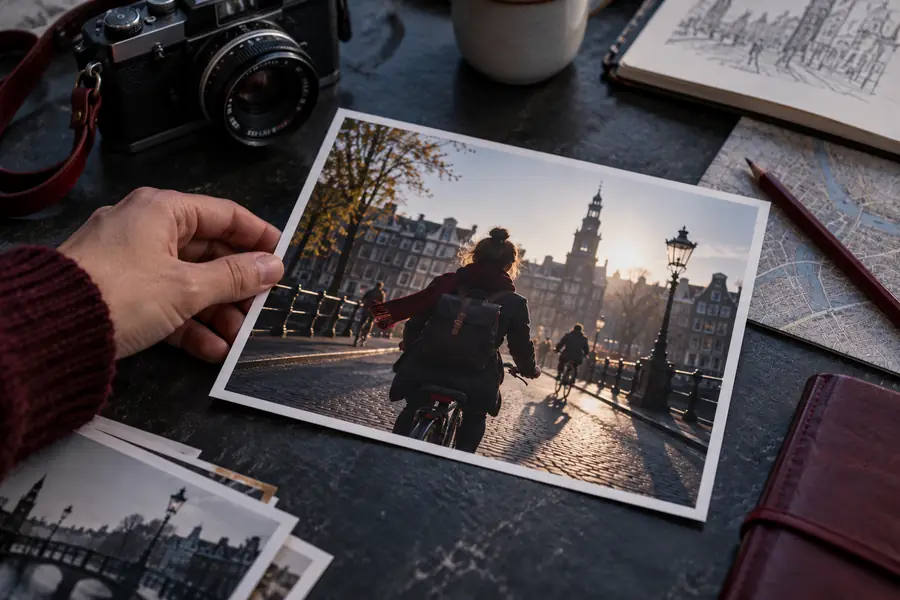
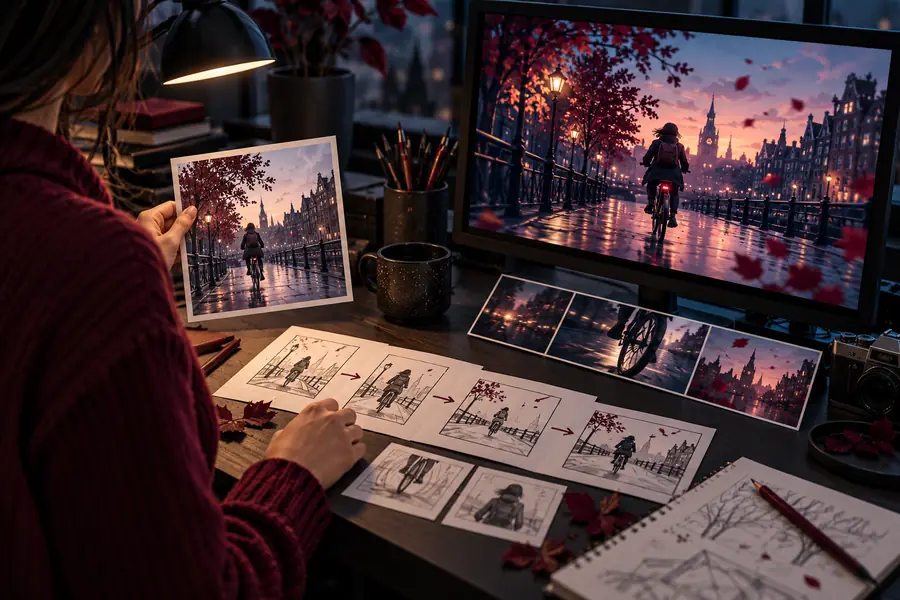
These images illustrate what to compare; they are not a verified input-and-output pair. Check your own generated clip frame by frame.
Source image exampleResult review examplefinal check
Take your scene description or permitted source image to the linked service. Confirm which CogVideoX models it currently offers, choose the matching input mode, and review the full video before revising your prompt. The service's available controls and terms determine what you can generate.
Ready to test a scene?
- Match the model to your input
- Describe one clear movement
- Inspect the complete result
tutorial FAQ
Not if your selected model supports text-to-video: you can begin with a written scene description. For image-to-video, you need a source image and a compatible CogVideoX model. Check the model's accepted inputs in the interface you choose.
Begin with a subject, a setting, one action, and an optional camera movement. For example, describe a person walking through a rainy street while the camera tracks alongside them. Review the result before adding more events or visual detail.
You may have selected a text-to-video model, or the particular interface may not expose image-to-video input. Check the model name and input documentation rather than assuming that every CogVideoX option accepts a still image.
Start with a simple scene and avoid asking for several transformations at once. An image-to-video model can use a source image as a visual anchor, but consistency is not guaranteed. Watch later frames as well as the opening frame before deciding whether to revise.
The same distinction between text and image inputs applies, but ComfyUI also requires a compatible workflow, model files, and connected nodes. Follow the dedicated ComfyUI instructions for that setup rather than treating this general guide as a node-by-node recipe.